?unique=aae48c4)

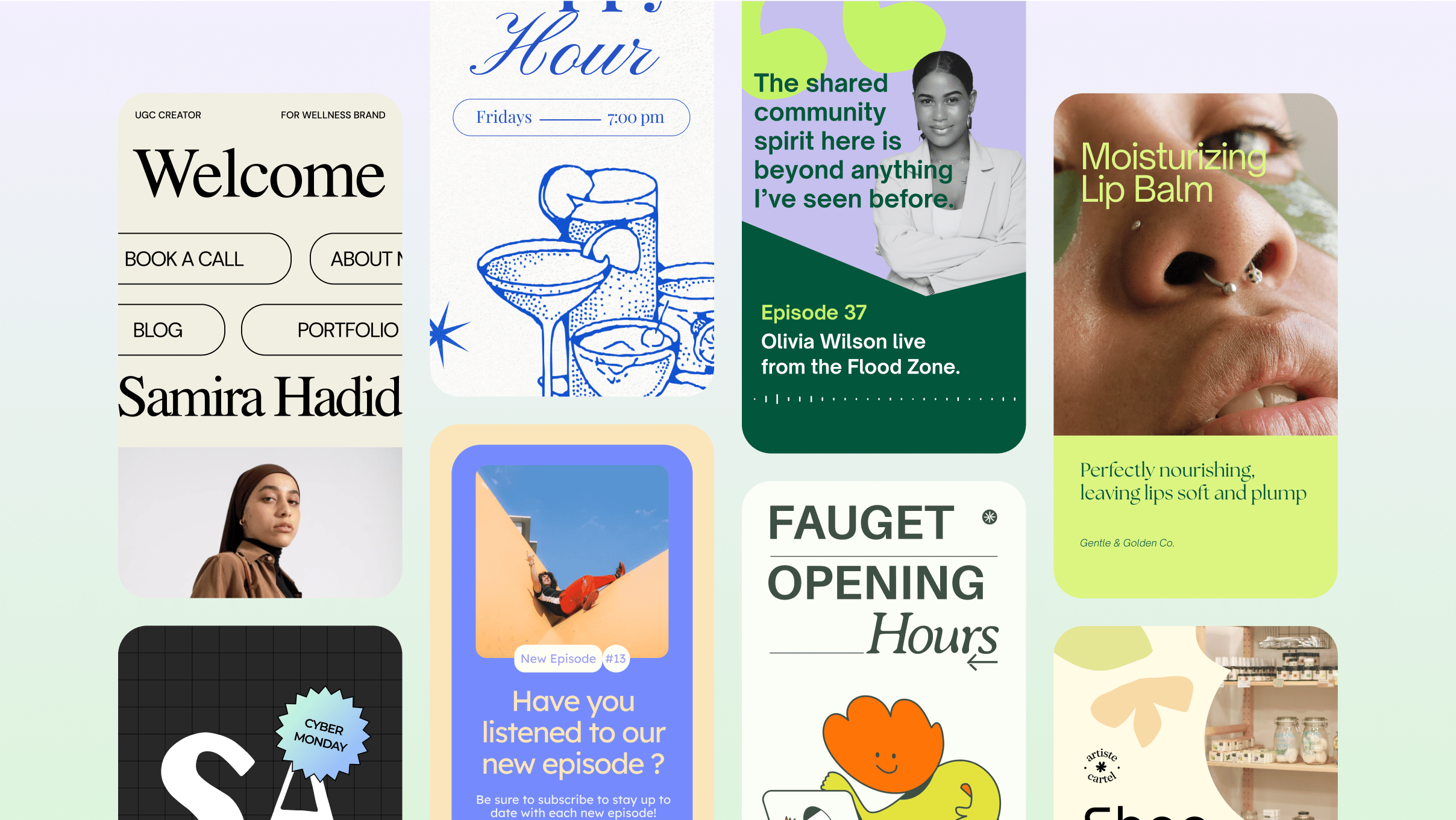
Instagram continues to be one of the most powerful platforms for creators, influencers, and businesses. But standing out requires eye-catching visuals — and that’s where Canva becomes your best tool.
In this guide, you will learn how to create stunning Instagram posts using Canva, even if you’re a complete beginner. We’ll cover templates, fonts, colors, editing tricks, and pro-level design tips.
⭐ Why Use Canva for Instagram?
Easy drag-and-drop editor
Thousands of ready-made templates
Perfect for carousels, reels, stories & posts
Great for branding consistency
Free to use (Pro optional)
🎨 Step 1: Choose the Right Template
Canva offers ready-made Instagram post sizes (1080 × 1080).
Search for keywords like:
“Instagram post”
“Minimal post”
“Aesthetic post”
“Business promotion post”
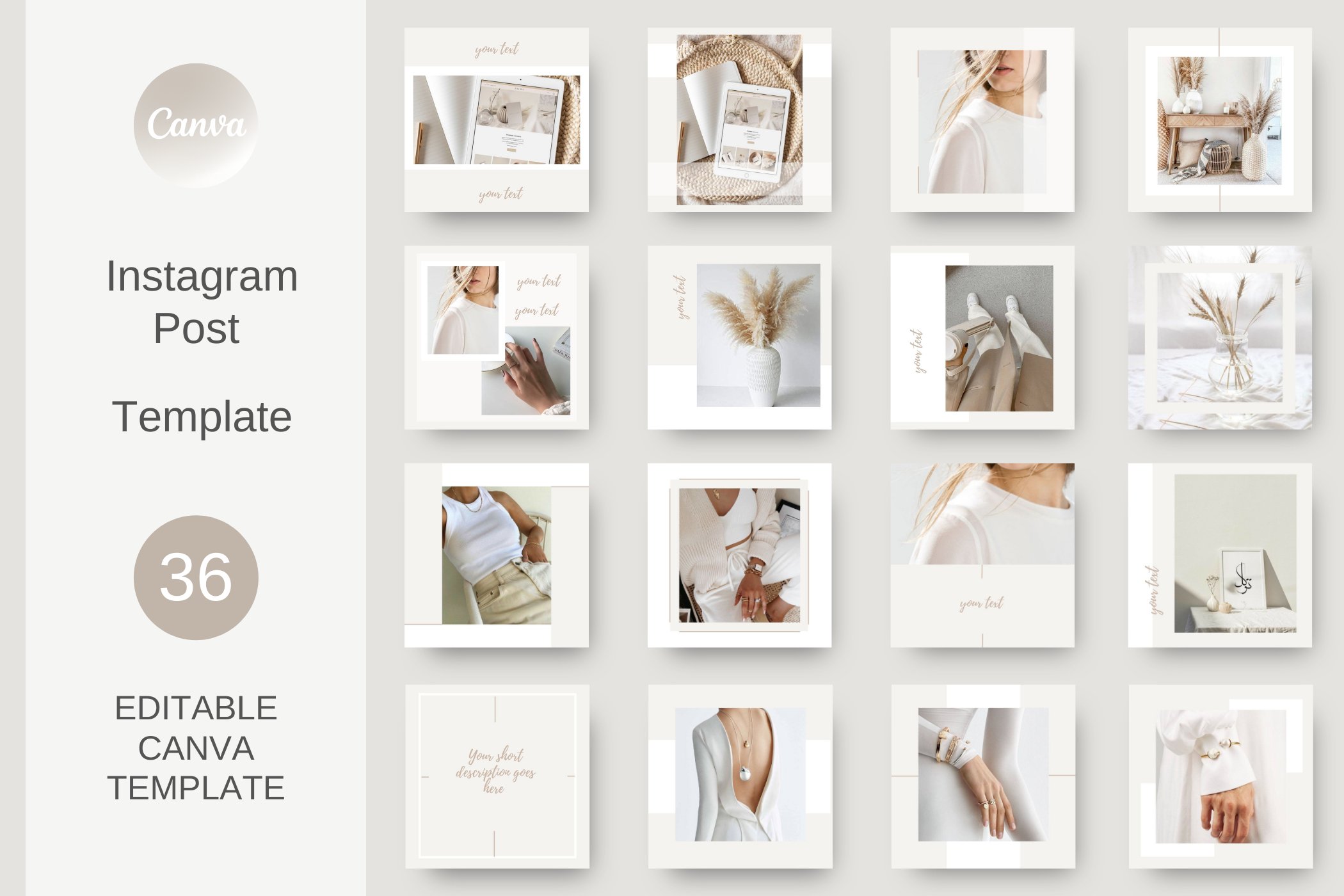
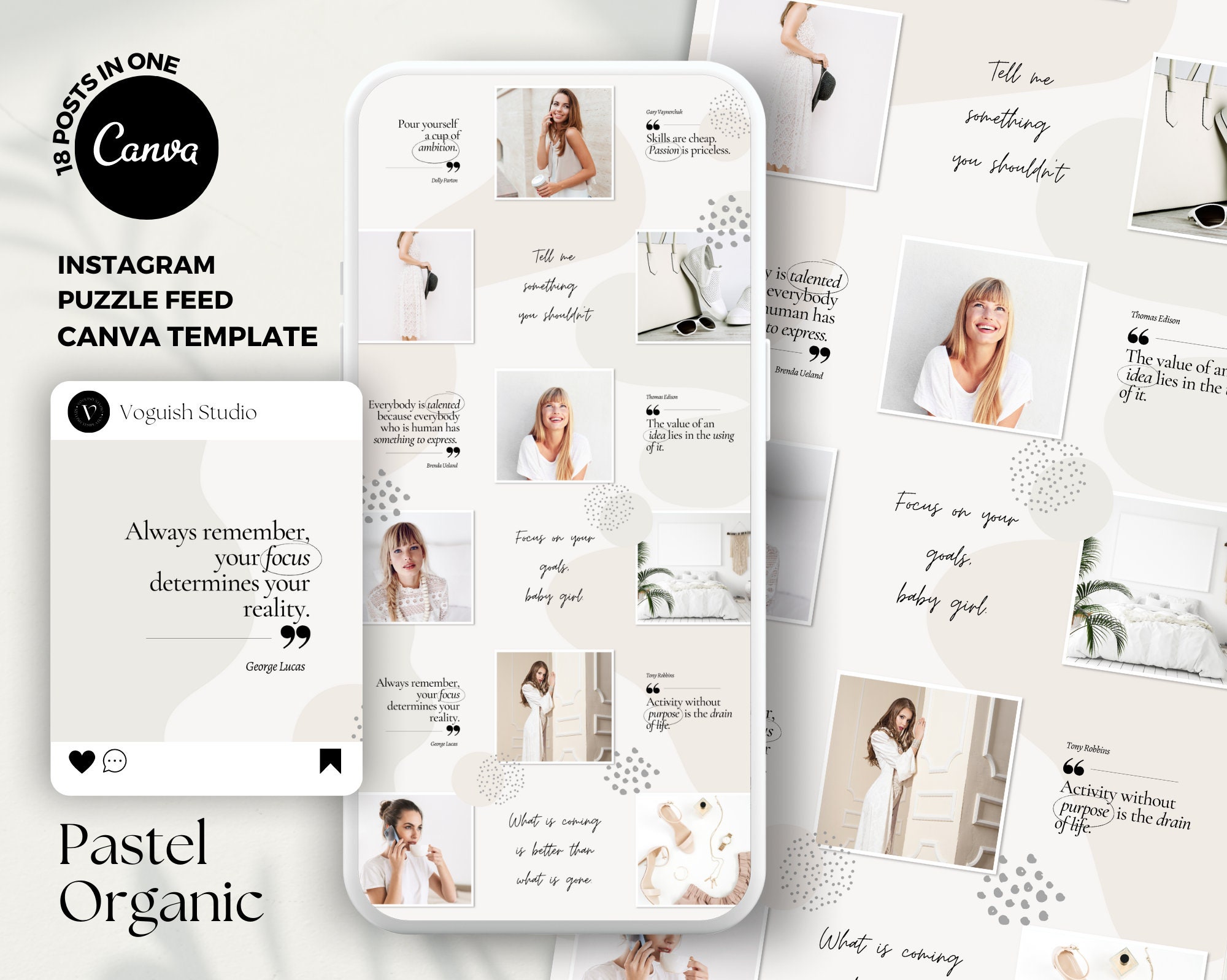
Choose a template that matches your brand style — clean, bold, pastel, modern, or aesthetic.
🎯 Step 2: Customize Text & Fonts
To make your design stand out:
✔ Use 2–3 font styles maximum
✔ Keep headings large & bold
✔ Use clean fonts like Montserrat, League Spartan, Playfair, Poppins
Pro Tip:
Use bold fonts for headlines and thinner fonts for the body to create balance.
🖼️ Step 3: Use High-Quality Images
Upload your own photos or choose from Canva’s library.
Search for themes like:
“Lifestyle”
“Minimal flat lay”
“Fashion portrait”
“Workspace aesthetic”
Make sure your images are bright, clear, and relevant.
🎨 Step 4: Apply Your Brand Colors
Keep consistency across all posts:
Choose 2 primary colors
Add 1 accent color
Use Canva’s brand kit for easy access (Pro feature)
This helps your audience recognize your posts instantly.
🧩 Step 5: Add Creative Elements
Enhance your design using:
Shapes
Icons
Stickers
Lines
Abstract elements


Use these lightly — don’t overcrowd your design.
📌 Step 6: Maintain Proper Spacing & Alignment
Good spacing makes your post look professional.
Use Canva’s alignment tools:
Center
Left-align
Grid layout
Spacing controls
Remember: Less is more.
🚀 Step 7: Export the Post in High Quality
Before downloading:
Check image resolution
Choose PNG for best quality
Choose JPEG for smaller file size
Use MP4 for animated posts
💡 Pro Tips for Stunning Instagram Posts
✨ Use drop shadows on text/icons
✨ Add gradient overlays for depth
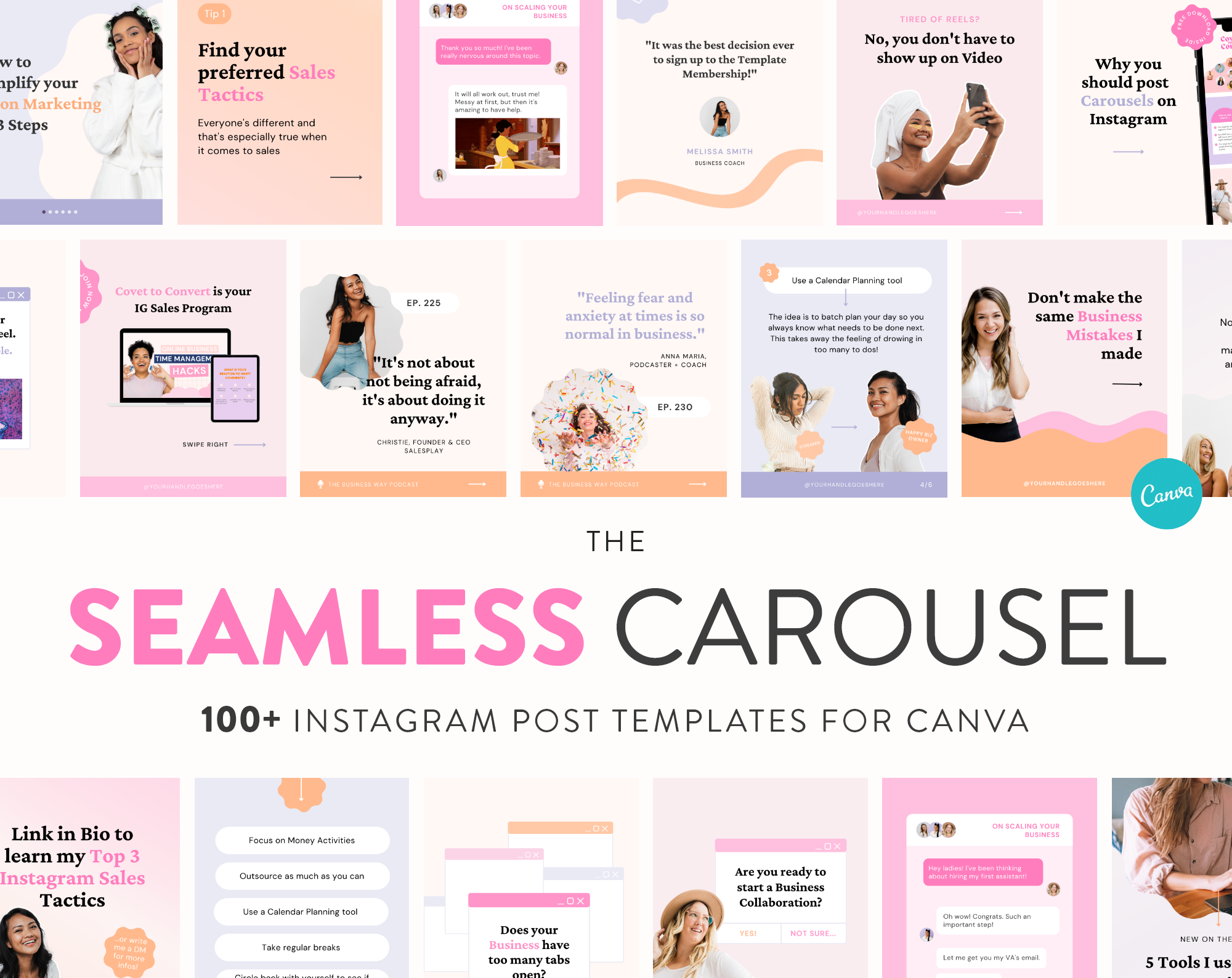
✨ Create carousel posts for higher engagement
✨ Maintain consistent style & filter
✨ Use templates to save time
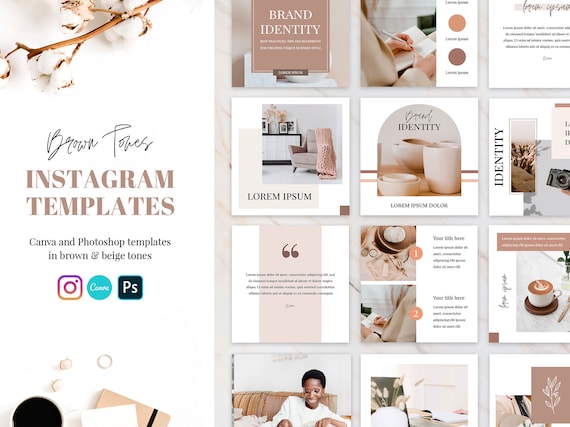
🎉 Final Thoughts
Using Canva, you can transform simple ideas into professional, scroll-stopping Instagram posts in minutes. Whether you're a business owner, influencer, or content creator, the right templates and design techniques can help your brand grow faster.