A YouTube thumbnail is the first thing viewers see — it can make or break your video’s success. A powerful thumbnail can increase your click-through rate (CTR), boost visibility, and dramatically grow your channel.
The good news? With Canva, you can design eye-catching thumbnails even if you’re not a designer.
In this complete guide, you’ll learn how to create professional, high-CTR YouTube thumbnails on Canva, with step-by-step instructions, examples, and insider tricks used by top YouTubers.
⭐ Why Thumbnails Matter So Much
YouTube ranks videos with higher CTR
A good thumbnail increases your views instantly
Viewers decide in 0.2 seconds whether to click
Branding creates trust and recognition
🎨 Step 1: Choose a High-Impact Thumbnail Template
Canva has thousands of pre-made templates optimized for YouTube creators.
Search terms inside Canva:
“YouTube thumbnail bright”
“YouTube thumbnail bold text”
“YouTube tutorial thumbnail”
“Vlog thumbnail”


Choose a template with:
✔ Big readable text
✔ Strong colors
✔ Space for your face or product
✔ High contrast background
🎯 Step 2: Use Big, Bold Text (Avoid Long Titles)
Your thumbnail text should be:
Short
Bold
High contrast
Easy to read even on mobile
Examples of good text styles:
“Fix This Now!”
“Easy Hack!”
“You Won’t Believe!”
“Do This Daily”
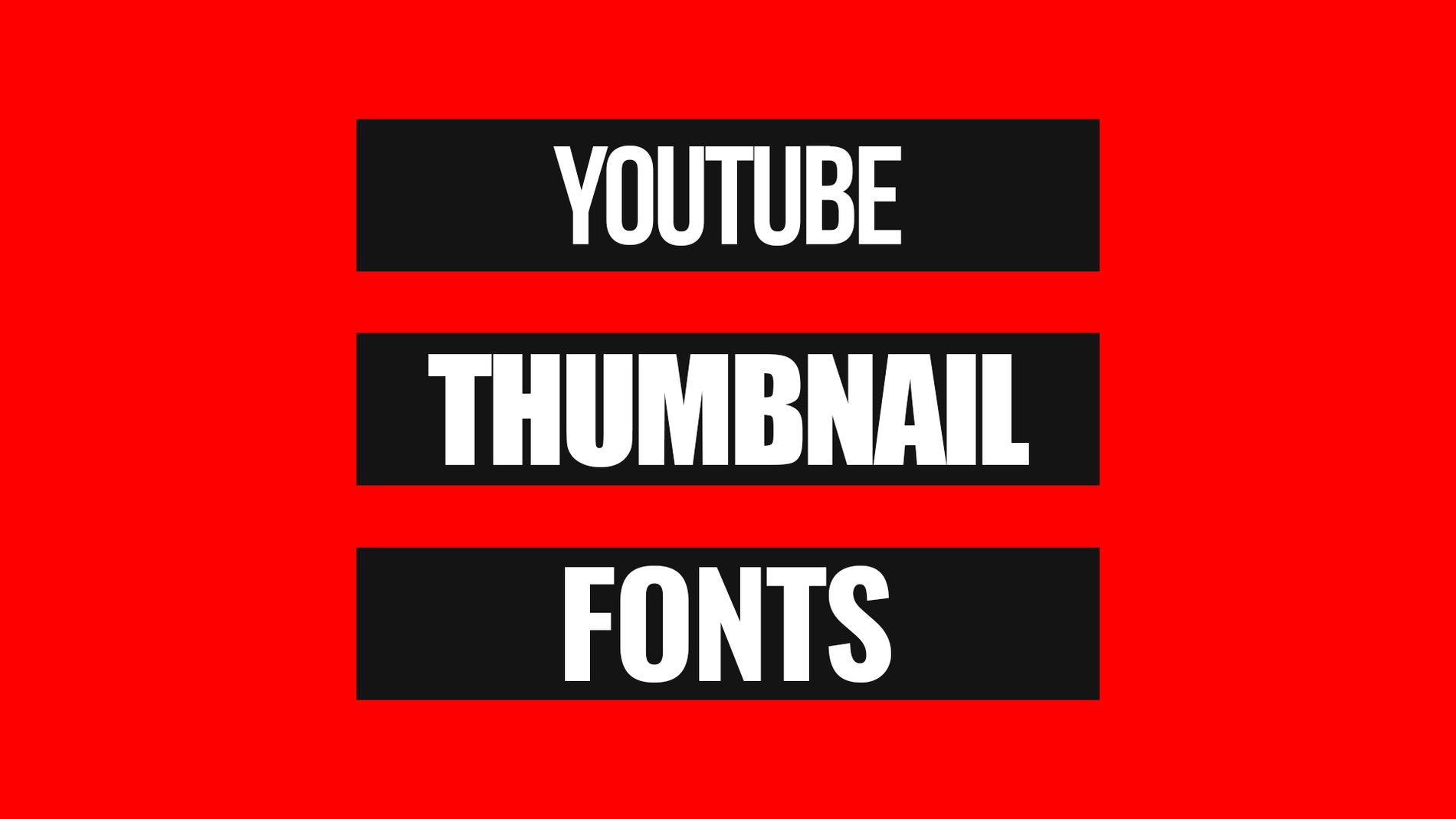

Fonts that work well:
League Spartan
Bebas Neue
Anton
Montserrat Extra Bold
🖼️ Step 3: Add a High-Quality Face or Product Image
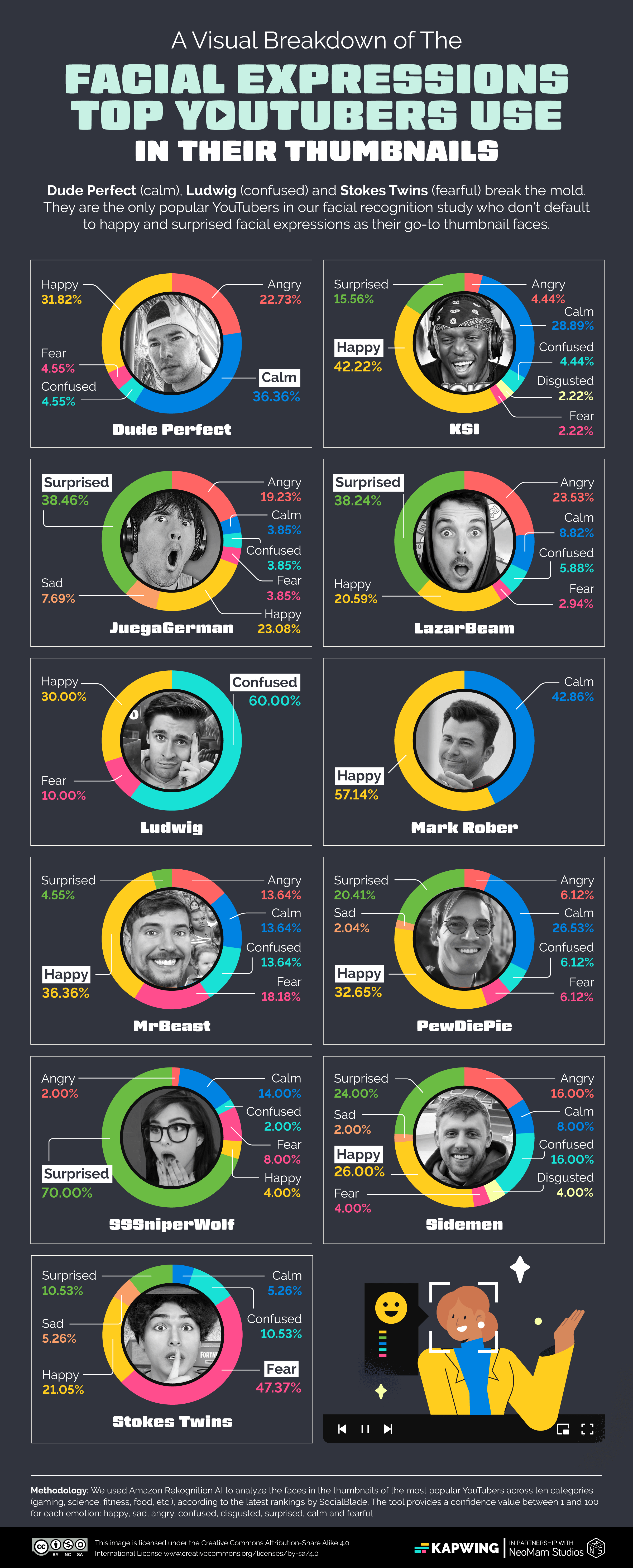
Faces increase CTR by up to 38%.
Make sure your face or product is:
✔ Well lit
✔ High resolution
✔ Cropped with background remover

Use the Background Remover tool in Canva for a clean, professional cut-out.
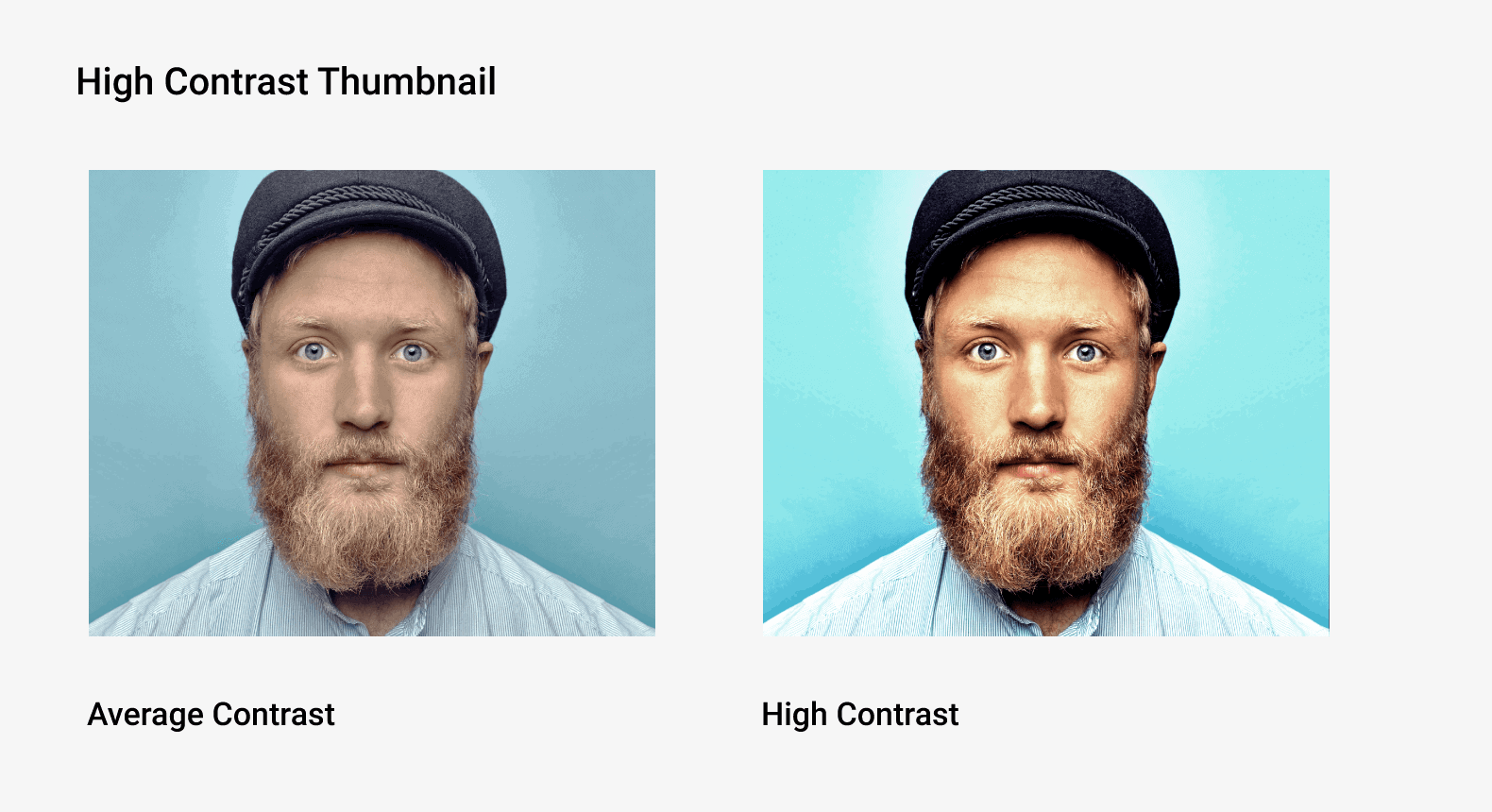
🧩 Step 4: Use Bright Contrasting Colors
Good thumbnail colors include:
Yellow + Black
Red + White
Blue + Yellow
Orange + Navy
Pink + White
Avoid dull or low-contrast colors that blend into YouTube’s interface.

🎛 Step 5: Add Shapes, Shadows & Highlights
Enhance your design by adding:
✔ Drop shadows behind text
✔ Outline glow around your face
✔ Arrows pointing to important things
✔ Circles / blobs behind text

These elements increase visibility and catch attention.
🧠 Step 6: Follow the 3-Element Rule
A winning thumbnail has:
1️⃣ One big face OR main object
2️⃣ One short bold text
3️⃣ One clean background
Too many elements → less clarity → fewer clicks.
📤 Step 7: Export in the Correct Size
YouTube thumbnail recommended size:
1280 × 720 px (16:9)
Download as PNG for best quality.
🚀 Pro Tips to Make Thumbnails Like Big YouTubers
✨ Use emotions — surprised, happy, shocked
✨ Show before/after images
✨ Zoom in your face
✨ Add brand colors for consistency
✨ Use arrows or circles sparingly
✨ A/B test thumbnails for best performance
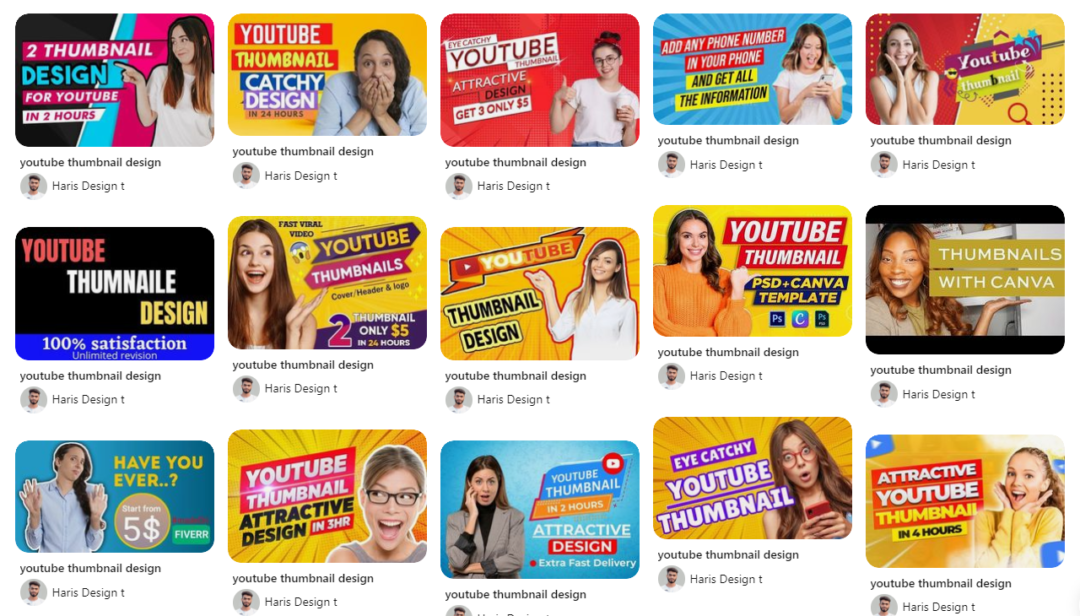
🎉 Final Thoughts
Creating professional YouTube thumbnails doesn’t require expensive software — with Canva, you can craft high-CTR designs that help your videos perform better and grow your channel.
Whether you’re a beginner or an experienced creator, applying these steps will elevate your content instantly.